
Paste a ChatGPT trip plan into Stopover and see every stop on one map, in order, with the flights, trains and drives between them.
A trip plan from ChatGPT is a list. A trip has a shape: where you start, which way round you go, and how far apart the stops are. A list hides that shape, and a map shows it.
Quick answer
Copy the plan from your chat and paste it into Magic Import. Stopover builds it right away: it places every stop on a map in the order of the plan and draws the travel between them. It works the same for a plan from Claude or Gemini, or one you wrote yourself.
How to do it
- Copy the whole plan, including the dates if it has them.
- Open Magic Import and paste it in.
- Send it. Stopover tells you the trip it's planning and builds it right away.
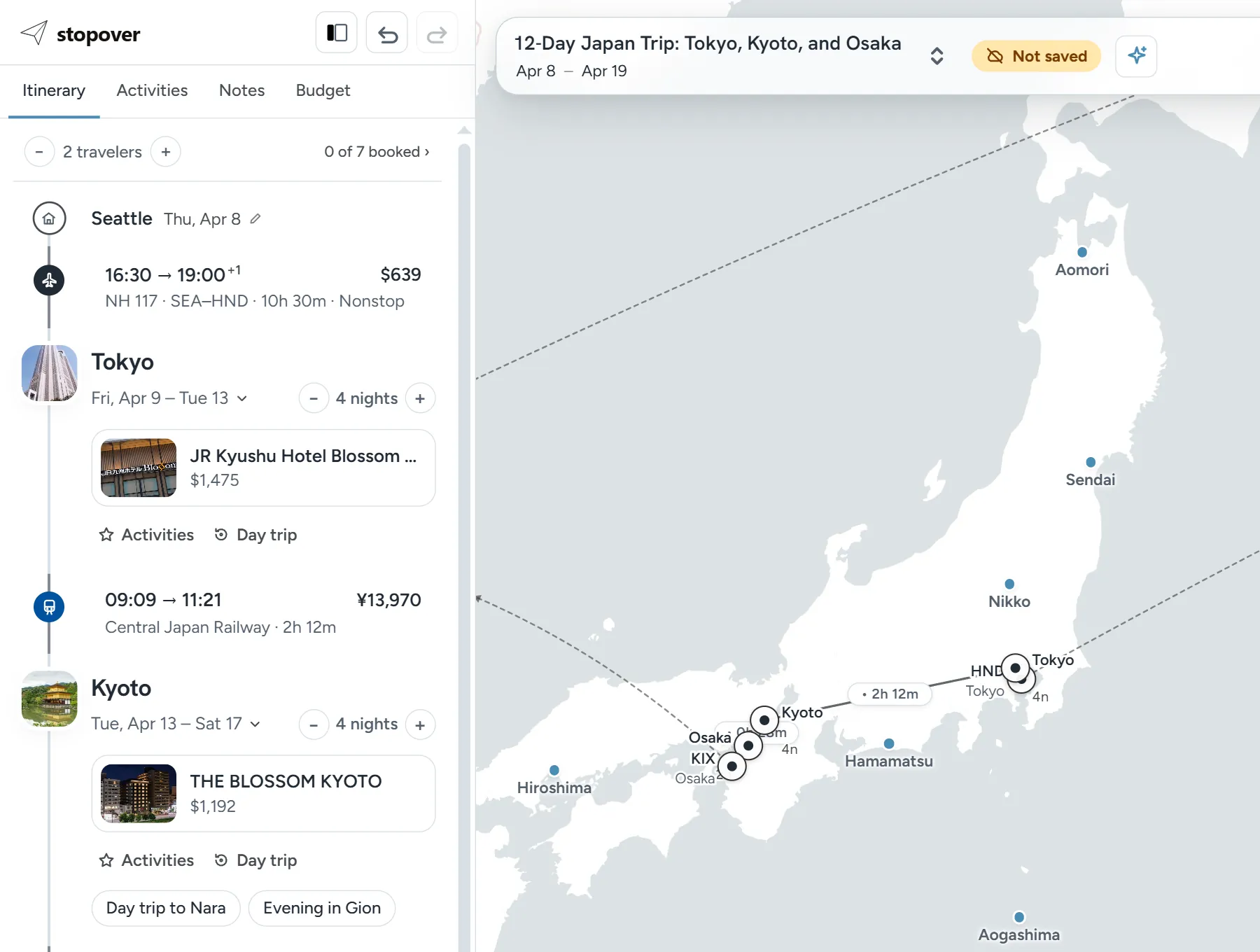
- The map shows the route, and the itinerary beside it lists each city, its nights, and how you get to the next one.
You can try it without an account. Sign in (it's free) to keep the trip.
What the map shows
- Every stop, in order. The route runs from your home through each city and back.
- The travel between stops. Flights, trains, buses and drives all sit on the route, so a long leg looks long.
- Hotel prices where you are staying. Open a city's hotels and the results appear on the map as price pins.
- Things to do. Activity suggestions for a city show on the map too.
What to look for
- A route that doubles back on itself.
- Two stops the plan calls close that are a long way apart.
- A day trip that takes most of the day to reach.
When something looks wrong, fix it on the spot. Drag a city to reorder the route, change its nights with the plus and minus buttons, or add a city in between.
After the map
The map is the start. From the same trip you can search flights for each leg, compare hotels with live prices and book them, and see what the whole trip costs. How to turn a ChatGPT itinerary into a real trip covers that in full.
FAQ
Can I share the map with the people I'm traveling with?
Yes. Sign in, click Share, and create a view-only link. Anyone can open it without an account. You can also invite up to 5 people to edit the trip with you.
Does it change my plan?
No. It keeps the stops, the order and the dates you pasted.
How long can the plan be?
One import builds a route of up to 6 overnight stops. You can add more cities by hand afterwards.